How to Search a Username on Your Phone (3,450+ Sites on Android)
By David James · Published · Updated · 7 min read · Editorial policy
Free, no sign-up. Checks 3,450+ sites; the username is not stored or logged.
Most username checks start on a phone. You hear a handle in a video, a friend mentions a new name for their shop, or you want to know if @yourname is free before you sign up somewhere. Opening a laptop for that is a chore, and typing the name into twenty apps one by one is worse.
Key takeaways
- On any phone, open the username search in your browser. No install or sign-up.
- On Android, the free FreeUsername app runs each check from the phone itself.
- There is no iPhone app yet, so iPhone users should use the browser.
- Results come in four groups: Found, Not found, Blocked and Unknown. Check Blocked and Unknown by hand.
A username search checks whether one handle has a public profile on many websites at once. On a phone, you can do it in the browser or in an Android app.
There are two ways to do it from your phone. You can open our username search in the mobile browser, or install the free username search app for Android, which runs the whole scan on the phone itself. This guide walks through the app step by step, then covers what the results mean and when the browser is the better choice.
Two ways to search a username on a phone
You can use the mobile browser or the Android app.
| Browser | Android app | |
|---|---|---|
| Works on | Any phone, iPhone included | Android only |
| Install or account | No | Install, no account |
| Where checks run | Our server, from your request | Your phone |
| Cost | Free with ads | Free with ads, daily free searches |
| History and export | No | Recent searches on device, JSON or CSV export |
In the browser. The web version works on any phone, iPhone included, with no install and no sign-up. It is free and shows ads. It sends each check through our server, which asks the sites and passes the answers back to your screen. It covers 3,450+ sites today.
In the Android app. The app is called FreeUsername: Username Checker and is on Google Play. It checks 3,450+ sites, and every request goes straight from your phone to the site being checked, so there is no scan server in the middle. The current version uses its own built-in site list; an update that moves the app to the engine behind our website is coming. It is free with ads, you get a set of free searches each day, and you can unlock more inside the app. You don't need an account.
Both search a large list of sites, so the choice comes down to habit. If you search often while out and about, or you want your recent searches kept on the device, the app suits you. On an iPhone, use the browser: there is no iOS app at the moment.

How to search a username with the Android app
Install the app, type the handle, and read the four result groups.
1. Install the app
Get it from Google Play. The app comes in 10 languages: English, Arabic, Spanish, French, German, Portuguese, Hindi, Indonesian, Turkish and Russian. There is no sign-up screen to get through.
2. Choose where to look (optional)
By default a scan covers every site. If you only care about, say, gaming or social apps, pick those categories or individual platforms first. A narrower scan finishes sooner and leaves fewer results to read through.
3. Type the username and start the scan
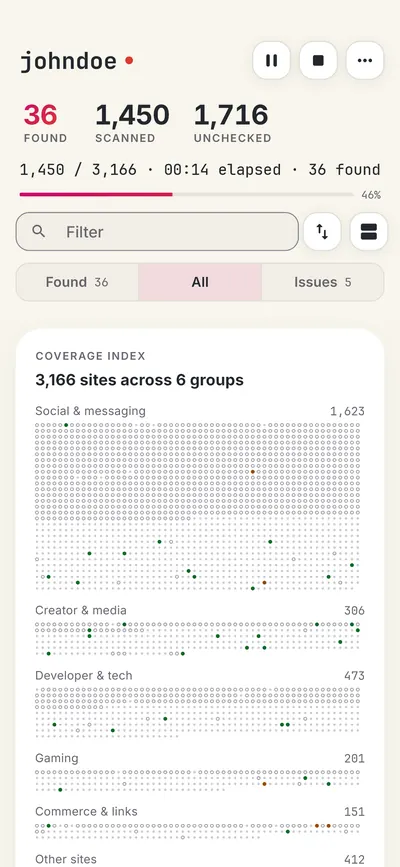
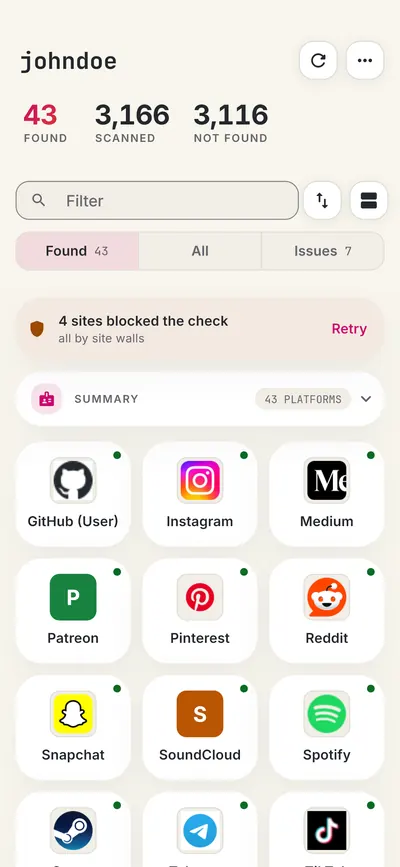
Enter the handle without the @ and start. Results arrive live as each site answers, sorted into four groups: Found, Not found, Blocked and Unknown. You can pause, continue or stop the scan whenever you like.
4. Retry the sites that blocked you
Some sites refuse automated checks now and then. Instead of running the whole scan again, retry only the blocked sites. A second try sometimes gets through.
5. Open the found profiles
Tap a found account to see its public profile where the site allows it: display name, avatar, bio and links. That is usually enough to tell whether the account belongs to the person you have in mind or to someone else who picked the same name.
6. Save or export the results
Recent searches stay on your phone, ready to reopen, and you can delete them in one tap. To keep a record or share it, export the results as JSON or CSV.
What the results mean
Each result is one of four statuses, and only Found and Not found are clear answers.
- Found means the site returned a profile page for that exact username. It does not tell you who runs the account.
- Not found means the site said no such user exists. For your own handle, that is a good sign the name is free there, but confirm it on the signup form, because some sites reserve names or hide deleted ones.
- Blocked means the site refused the check, so the app could not tell. Retry it, or open the site and look by hand.
- Unknown means the site gave an answer the app could not read as a clear yes or no. Check it by hand if it matters.
Worked example. Say you want to claim nightowl92 for a new shop. On your phone, open the username search in the browser and run it. Not found on TikTok and YouTube means the name looks free there, so open those apps and register it. Found on a forum means someone already has it; open the profile to see if it is your own old account. Blocked or Unknown means the check could not tell, so try that site's sign-up form. Instagram and Threads are not checked live; follow their manual guides in the results.
Treat every status as a lead, not proof. Two accounts with the same handle on different sites can belong to two different people. Our page on how the checks work explains why false hits happen and how to spot them.
Good reasons to check a username on the go
The main reasons are claiming a name, finding your old accounts and checking a stranger's account.
Before you sign up somewhere new
If you are about to claim a handle on a new app, a quick scan shows where the same name is still open, so you can grab it everywhere in one sitting. Our guide to checking if a username is taken covers how to confirm availability on each site, and the name checker adds domains to the picture.
To find your own old accounts
Run the usernames you used years ago and you will probably find a forum or game account you forgot about. If you can't remember the name you used, start with how to find your old username. For a wider routine, see how to search yourself online.
To check that an account is who it says
Before you trust a seller, a match or a new contact, see whether their handle shows up elsewhere with the same name and photo. A long-standing presence across a few sites is reassuring. A handle that exists only on the one app where they contacted you is worth a second look.
Privacy: what happens to the username you type
We do not keep the username you type. In the app, the scan runs on your phone and the usernames you search are not sent to us. The app has its own privacy policy, which lists what the app and its ads collect. On the website, the username goes to our server only to run the check and is not stored or logged.
Either way, the sites you check see an ordinary visit to a public profile address. Nobody gets notified that you looked them up.
Canadian readers can find app notes for privacy and language in our Canada username checker guide.
FAQ
Is the username search app free?
Yes. It is free to download and shows ads. You get a set of free searches every day and can unlock more inside the app.
Can I search a username on an iPhone?
Yes, in the browser. There is no iPhone app at the moment, but the web version at freeusername.com works in Safari or any other mobile browser.
Do I need an account to use the app?
No. There is no sign-up and no login.
How many sites does the app check?
3,450+.
Why does the app say a site is blocked?
The site refused the automated request, which some sites do to limit traffic. Use the retry option for blocked sites, or check that site by hand.
Does a "Found" result mean I found the right person?
No. It means an account with that username exists on that site. Look at the profile details, photos and links before you connect it to anyone.
The app and this site are not affiliated with the WhatsMyName project or with Google. Google Play is a trademark of Google LLC.
Related tools
Check a username now. Free, no sign-up, 3,450+ sites.

Search usernames on your phone. Get the free Android app. Scans run on your device.
Related in Username tips
- Username tips
Cute Username Ideas: 65+ Soft, Aesthetic & Short Names
Cute username ideas for Instagram, TikTok, Roblox and Discord: soft, aesthetic, animal, food and short picks, how to make your own, and how to look up if one is free.
· 2 min read
- Username tips
WhatsMyName Apps Is Now FreeUsername: Our Rebrand
Our username search has a new name and a new home at freeusername.com. Same free tools, same 3,450+ sites, and every old link still works.
· 1 min read
- Username tips
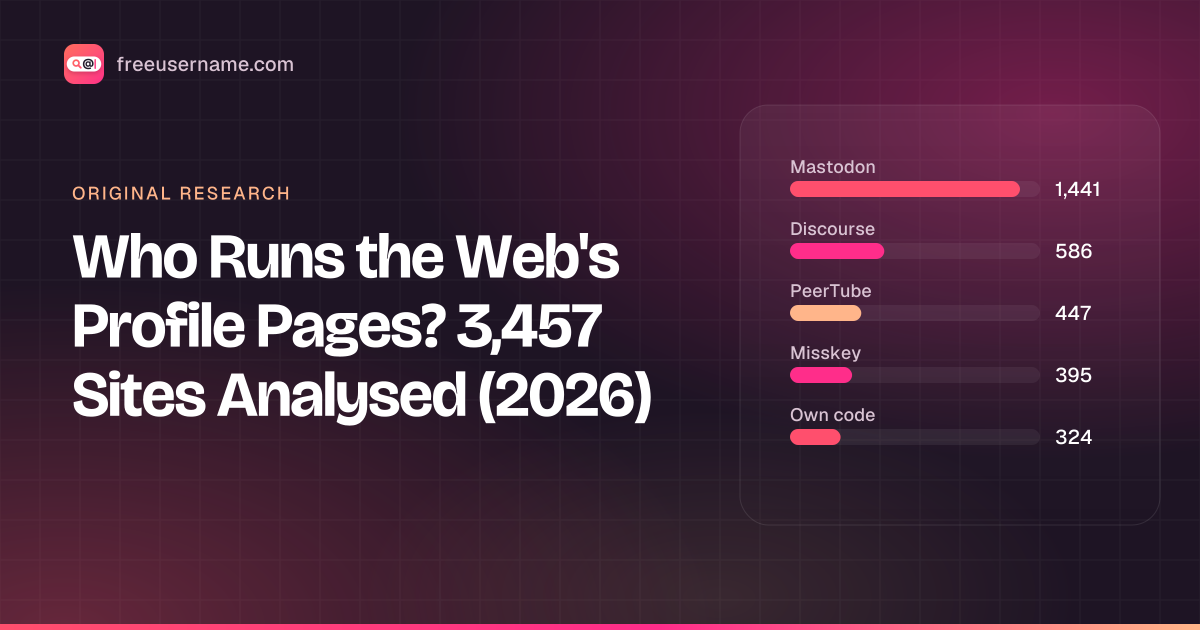
Who Runs the Web's Profile Pages? 3,457 Sites Analysed (2026)
Original data: 90.6% of the 3,457 sites in our username search run on 11 shared open-source platforms, and 71% are fediverse servers. What that means for your results.
· 6 min read

More from the blog
- What's Inside a 3,000-Site Username Checker? We Opened Ours
- We Ran Sherlock, Maigret, Blackbird and Our Engine on the Same 10 Usernames
- Reverse Gamertag Lookup: Find a Player Across Games
- How to Find Someone's Alt Twitter (X) Account
- Digital Footprint Check in Canada: Free, No Sign-Up
- PIPEDA Privacy Rights and Quebec Law 25, Explained