

Guide
How to check if a username is available
This guide walks through one availability check from start to finish on the FreeUsername search. You type a name, the tool asks each site if a profile with that name exists, and you get a list of where it is taken and where it looks free. Want the general method, including checking by hand on each site? Read how to check if a username is taken. Want domains too? The name checker adds .com and other domain endings.
1. Type one username
Open the home page and type the name you want into the search box, without the @. Letters, numbers, dots, dashes and underscores all work. If you only care about one name, type just that one so the results stay easy to read.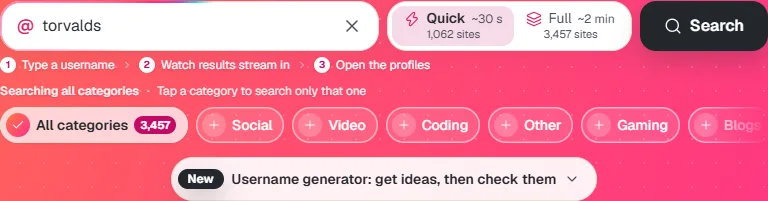
2. Choose Quick or Full
Quick checks about 1,000 of the most popular sites and usually takes around half a minute. Full checks all 3,450+ sites, including small forums and wikis, and takes about two minutes. Start with Quick when you are picking a name for the big platforms. Pick Full when you want to know if the name is already used anywhere.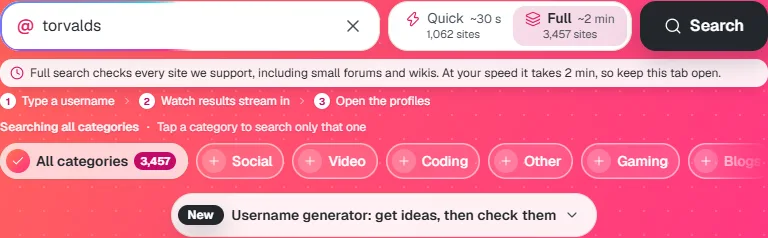
3. Press Search and watch the results come in
Results appear while the scan runs. A ring shows the percentage done, and four counters (Found, Not found, Blocked, Unknown) go up as each site answers. You can press Pause or Stop at any time and still keep what has been checked so far.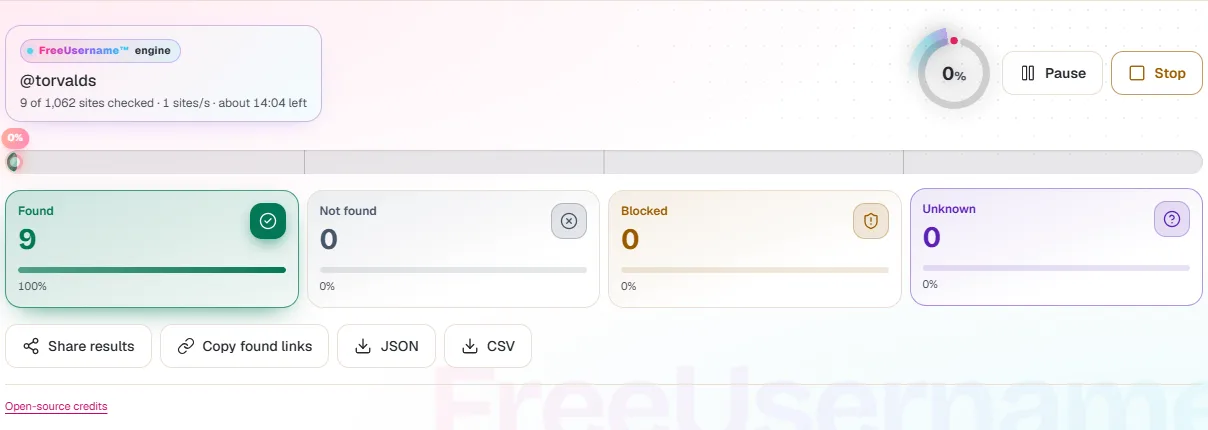
4. Read the four statuses
- Found: a profile with that name seems to exist. The name is taken on that site.
- Not found: the site says there is no such profile. The name is probably free.
- Blocked: the site refused or rate-limited our check. We cannot tell either way.
- Unknown: the reply was unclear, for example a timeout. Check it by hand.

5. Open a result to confirm it
Click a card, then Open profile, to see the page yourself. A Found card for a site you care about is worth a look: sometimes the profile is a placeholder or a deleted account. For a Not found result, the real test is the sign-up form on that site, which tells you for sure if the name is free.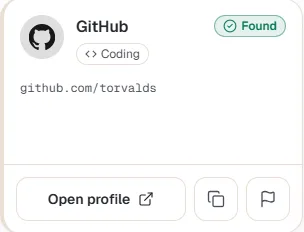
6. Retry anything that failed
When the scan ends, a banner shows how long it took and how many results could not be confirmed. Press Retry failed to run only those checks again. If a site stays Blocked, open it in your own browser, because many sites only block automated checks.
Tips for picking a name that is free
- Check the exact spelling you plan to use. A dot or underscore counts as a different name on most sites.
- If the name is taken on the one site you care about most, try the username generator for close variations, then check them.
- Compare a few spellings in one go with the multiple username search.
- Claim the name on the sites you need soon after you check. Results show what was true at the moment of the scan.
FAQ
Does Not found mean I can register the name?
Usually, but not always. Some sites reserve names, hide banned accounts or block certain words. The sign-up form on the site gives the final answer.
Why is a big site like Instagram missing or Unknown?
A few large sites block automated checks, so we cannot read them reliably. Open them in your own browser to check by hand.
Should I use Quick or Full?
Quick is enough for choosing a name for the popular platforms. Full is better when you want the name to be unique across the web.
Is the check free?
Yes. There is no account, no sign-up and no limit on how often you can try a new name, apart from a short pause if you search very fast.
Do you save the names I check?
No. The name is sent to our server only to run the check and is not logged. Recent searches stay in your own browser.
More guides
Ready? It is free and needs no account.
Check a username