

Guide
How to use the FreeUsername Android app
The FreeUsername app brings the username search to Android. This guide covers installing it, running your first search, reading results and the tabs you will use most. Screens are from the English version with a sample handle. For an overview of features and what is new, see the app page. On iPhone? Read how to search a username on your phone.
1. Install the app from Google Play
Get the app from Google Play on an Android phone. It is free, with nothing to buy and no account to make. An iPhone version is not out yet; on iPhone, use the website in your browser.
2. Type a username on Discover
The Discover tab opens first. Type a username, or paste a profile link and the app pulls out the name. Press Find profiles to start.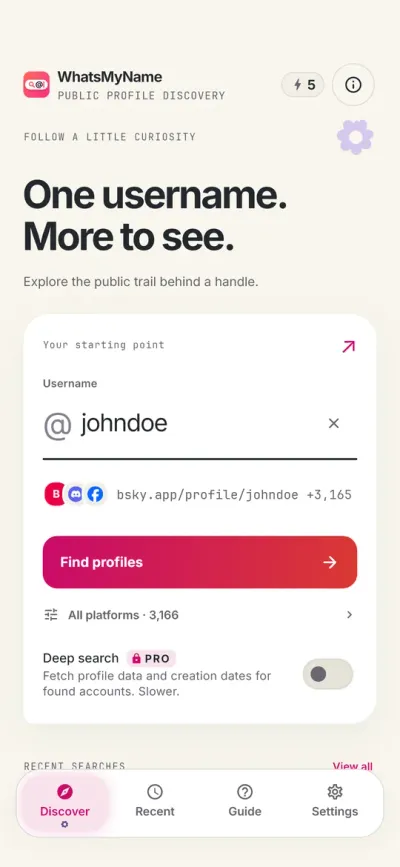
3. Choose where to look (optional)
Open Scope to pick categories or sources if you only care about, say, gaming or coding sites. Leave it as it is to check everything.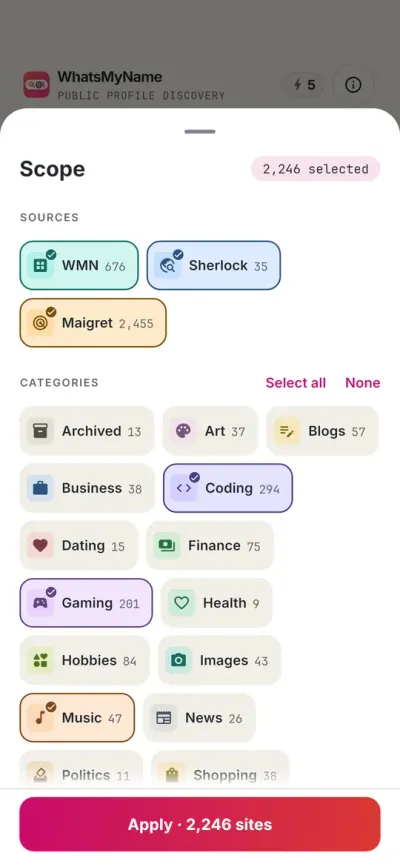
4. Watch the scan run on your phone
Your phone contacts each site directly, so your searches do not pass through our servers. The scan screen shows how many profiles were found so far and how far along it is.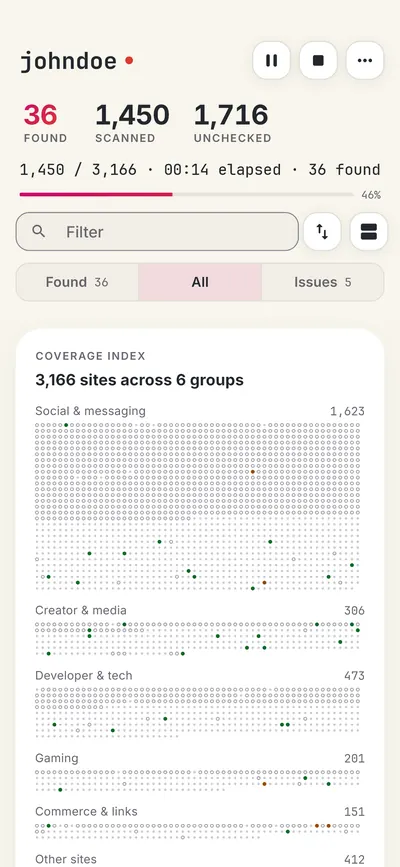
5. Open a result to confirm it
Results show real platform icons and the same Found, Not found, Blocked and Unknown statuses as the website. Tap a result to see the detail sheet and open the profile. Deep search adds public names, avatars and bios, and export saves JSON or CSV; you can use both after watching an optional short ad.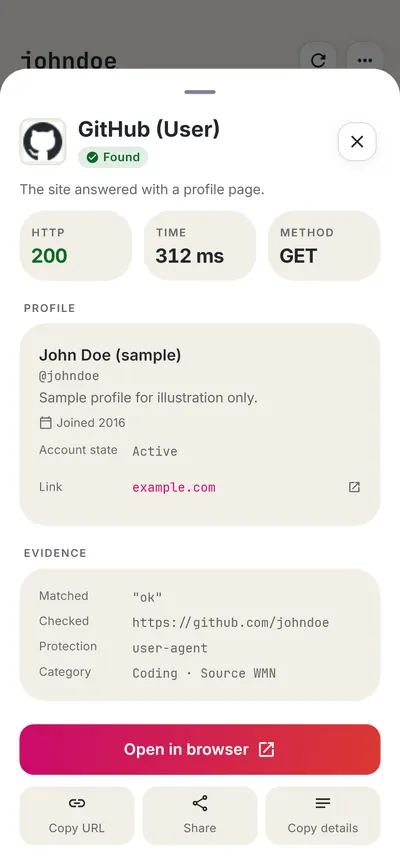
6. Come back to Recent and the Guide tab
The Recent tab keeps your past searches on the phone so you can reopen them. The Guide tab has short how-to topics and can replay the introduction. You get free searches every day, and an optional ad adds more.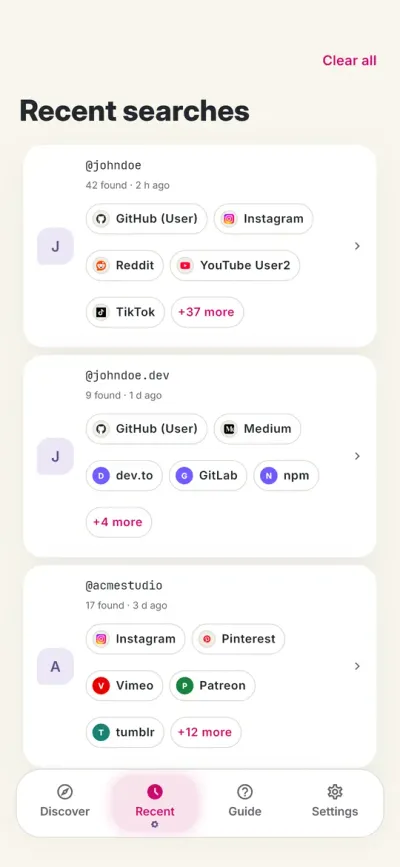
7. Try the AI tools and the Watchlist
Open the AI tab for name ideas, bios, Vibe check, Privacy score and more. Save up to 10 of your own usernames to the Watchlist and the app checks them again once a week when you open it. If you do not see these, update the app from Google Play.
FAQ
Is the app free?
Yes. There is nothing to buy and no subscription. Ads pay for it, and some extras are available after an optional ad.
Can you see what I search in the app?
No. The scan runs on your phone and contacts each site directly. The sites you check can see your IP address, just as when you visit them.
Is the app the same as the website?
It checks the same 3,450+ sites. The website also has the username generator, bio generator and domain check; the app adds Recent, the Guide tab AI tools and a Watchlist.
Why do I not see the Watchlist or AI tools?
They are in version 0.0.6 and later. Update the app from Google Play and check again.
How do I send feedback?
In the app, go to Settings and choose Send feedback, or email [email protected].
More guides
Ready? It is free and needs no account.
Get it on Google Play